


• Home
  • Careers
Help Centre

Frequently asked questions

Everything you need to know about your Worldwide Greeter account — find answers by account type or search across all questions.

Corporate account

14 questions

Getting started

  • Your account is activated by the Worldwide Greeter enterprise team. Once your contract is signed, you’ll receive a welcoming email with your account credentials, onboarding documentation, and a link to your Corporate Portal.

    From there, complete the onboarding checklist:

    1. 1.

      Complete your company profile and billing details

    2. 2.

      Add your departments and cost centres

    3. 3.

      Configure your approval rules

    4. 4.

      Add a payment method

    5. 5.

      Upload your traveler roster or add travelers individually

  • Access is role-based. You can assign the following roles to members of your team:

    • •

      Travel Manager — full access: book, approve, view billing, manage settings

    • •

      Finance Director — approve bookings, view and pay invoices, view reports

    • •

      Booker / Executive Assistant — create bookings on behalf of travelers, no billing access

    • •

      Traveler — read-only access to their own trips via the Traveler App, not the portal

    Invite users from Settings → Roles and permissions → Invite user.

  • Go to Travelers in the sidebar. You can add travelers three ways:

    1. 1.

      Individually — click Add traveler and fill in the profile form

    2. 2.

      Bulk upload — download the CSV template, fill in your roster, and upload. The system validates every row before importing.

    3. 3.

      Traveler groups — create named groups (e.g. Sales Team, Executive Leadership) so you can book and track multiple travelers together

    Each traveler profile stores passport details, VIP status, special requirements, and preferred package — these travel with every booking automatically.

Bookings

  • Every booking goes through your configured approval rules before a concierge is dispatched. Rules are fully configurable under Settings → Approval rules.

    Default rules include: bookings over a set amount require Finance Director approval, Diamond package bookings require CEO or CFO sign-off, and same-day bookings auto-approve for speed. You can customise every rule — threshold, approver, SLA, and auto-approve conditions.

    Approvers receive an email and in-portal notification instantly. They can approve or deny from the email itself — no need to log in.

  • Yes. From Bookings → Recurring, you can create a template for a booking that repeats on a defined schedule — for example, every Monday for a CEO’s weekly commute through LHR.

    Each occurrence generates a new booking that goes through your approval rules as normal. You’ll receive approval notifications before each occurrence. You can pause or cancel a recurring booking at any time.

  • Yes. When creating a new booking, select multiple travelers from your traveler directory or choose a pre-built group. The system creates linked bookings — each traveler gets their own concierge but they are tracked together as a group event.

    Group bookings over 5 passengers require Finance Director approval by default. You can adjust this threshold in your approval rules.

Billing

  • Corporate accounts are invoiced monthly. Invoices consolidate all services for the month, broken down by department and cost centre — so your finance team can reconcile against internal budgets without chasing individual receipts.

    Payment methods available: corporate credit card, bank transfer (ACH/BACS), or invoice billing on Net-30 terms. All are managed under Billing → Payment methods.

    Your negotiated corporate discount is applied automatically at checkout — you never need to enter a code.

  • Go to Billing in the sidebar. From here you can:

    • •

      Download individual invoice PDFs from the invoice list

    • •

      Export expense reports by department and cost centre as CSV

    • •

      View spend vs budget progress bars per department

    • •

      See a full audit trail with approval timestamps per charge

  • When your spend reaches 80% of your monthly budget, your travel manager receives an automatic alert by email and in-portal notification. If the budget is exceeded, a red overrun indicator appears on the dashboard and the billing page.

    Going over budget does not block bookings — it simply flags the overrun so your finance team can review. You can raise your budget limit by contacting your account manager.

Live operations

  • Yes — the Live Ops module in your portal shows every active company service in real time. For each traveler you can see: current service status, concierge name and GPS position, flight status including delays, gate and terminal, and a countdown to arrival.

    Status updates every 5 seconds via live connection. You receive automatic push notifications and emails on key events: concierge assigned, en route, on site, service complete, and flight delays.

  • Worldwide Greeter monitors all booked flights in real time. The moment a delay is detected, the system automatically adjusts the concierge’s schedule and notifies them directly. Your travel manager and the traveler both receive an alert with the new ETA.

    The concierge moves to standby mode and their arrival at the gate is timed to the updated landing time — your traveler is never left waiting because of a flight change.

Support

  • Support SLAs depend on your service tier:

    • •

      Diamond — 1 hour response, 24/7 VIP support line

    • •

      Platinum — 2 hour response, 24/7 support

    • •

      Gold — 4 hour response, business hours priority

    • •

      Silver — best effort, business hours

    Your dedicated account manager is also reachable directly for any account-level issue outside normal ticketing.

  • Go to Support in the sidebar. From there you can open a new ticket with a subject, category, related booking ID, description, and file attachments. Tickets are tracked with priority levels — Urgent, High, Medium, Low — and you can see the full conversation thread and resolution status in the portal.

    For emergencies during an active service, use the 24/7 emergency phone line shown on your Support page.

  • Yes — your account manager can arrange a live walkthrough of the Corporate Portal for your travel management and finance teams. We also provide recorded demo videos, onboarding documentation, and in-portal guided setup for new accounts.

    Contact your account manager directly or email corporate@worldwidegreeter.com to schedule.

Traveler account

14 questions

Getting started

  • Your company’s travel team books your airport services on your behalf. Once a booking is confirmed and assigned to you, you’ll receive a notification and can view all your trips in the Worldwide Greeter Traveler App (available on iOS and Android) or at the traveler web portal.

    Sign in with your corporate email address. If you have not received your login details, contact your company travel manager.

  • The Traveler App is a read-only experience — your services are always booked and managed by your company travel team. You cannot create, modify, or cancel bookings from the app.

    If you need a service that has not been arranged, contact your travel manager who can raise a booking through the Corporate Portal.

    If you are an individual (non-corporate) client, you can book directly through the Worldwide Greeter Client App or website.

  • The Traveler App shows you everything relevant to your journey:

    • •

      Active trip with live concierge location and ETA

    • •

      Upcoming and past trip history

    • •

      Bookings pending approval from your travel team

    • •

      Real-time flight status including delays

    • •

      Meeting point details and name board instructions

    • •

      Direct messaging with your assigned concierge

    • •

      Full activity log for each service

At the airport

  • Once your flight lands and your concierge has arrived at the meeting point, you’ll receive a push notification: “Mohammed has arrived at Gate C12 and is waiting for you.”

    Your concierge will be holding a board (Name Signage) with your name near the location specified in your booking (e.g. Arrivals exit, Belt 3). You can see their exact location on the live map in your app and they can see yours — the map guides you to each other.

    Once you spot them, tap I can see my concierge in the app — this confirms the connection and starts the escort phase.

  • The live map activates in two phases:

    • •

      En Route — you can see your concierge moving toward the airport on the map. Your location is not yet shown.

    • •

      On Site — once your concierge has arrived and validated their location at the airport, the map shows both of you. Your concierge sees you moving toward them; you see them stationary at the meeting point.

    The map updates every 5 seconds. Once you are together, the map switches to escort mode and guides you both to your drop-off point.

  • Nothing you need to do. The system monitors your flight automatically. The moment a delay is detected, your concierge is notified and their schedule is adjusted to match your new arrival time.

    You will receive a push notification with the updated ETA. Your concierge moves to standby and will arrive at the gate timed to your actual landing — not the original schedule.

Communication

  • Once a concierge is assigned to your booking, a Message and Call button appear on your Active Trip screen and on the Messages tab.

    Messages are delivered in real time. Your concierge can respond directly from their Concierge App. Past conversations are saved per booking — you can read them anytime from your trip history.

    Calls connect you directly to your concierge’s mobile. If they are unavailable, you can also reach the 24/7 Worldwide Greeter operations line through your Support page.

  • Yes — every conversation is stored against its booking and is permanently accessible in your Messages tab and trip history. You can read the full thread but cannot send new messages once the service is marked complete.

After your trip

  • Immediately after your service is marked complete, a rating prompt appears on your screen. You can give a star rating (1–5) and optional written feedback.

    Your feedback is shared with the Worldwide Greeter operations team and contributes to your concierge’s performance score. You can also rate from your past trips list — tap the trip, then Rate this service.

  • Go to My Trips → Past in the app. Each completed trip shows: route, date, package, concierge name and rating, service duration, and a full activity log. You can also view the full message thread from each past service.

Account

  • For Corporate Traveler - Your profile is managed by your company travel team. Details like your name, email, phone, and passport are set in the Corporate Portal by your travel manager — you cannot edit them directly in the app.

    If your details need updating (e.g. new passport number), contact your travel manager and ask them to update your traveler profile in the portal.

    For Private Traveler - You can conveniently manage your profile through our mobile or web application. Navigate to Profile → Edit Profile to update your account settings.

    You can update your notification preferences and language settings directly from the app under Profile → Notification preferences.

  • You receive push notifications and emails for the following events:

    • •

      Booking confirmed by your travel team

    • •

      Concierge assigned to your trip

    • •

      Concierge en route to the airport

    • •

      Concierge arrived at the meeting point

    • •

      Flight delay detected

    • •

      Service completed

    • •

      New message from your concierge

    You can turn each notification type on or off from Profile → Notification preferences.

  • Special requirements are stored on your traveler profile by your company travel manager. They are automatically included in every booking made for you — your concierge is briefed before arriving.

    Requirements that can be stored include: wheelchair or mobility assistance, dietary needs, preferred language, unaccompanied minor support, medical assistance, and any other access or comfort needs.

  • If you are a corporate traveler, first check that you are using your corporate email address as your username. If you have forgotten your password, use Forgot password on the login screen — a reset link will be sent to your email.

    If you still cannot access your account, contact your company travel manager who can check your account status in the portal, or reach Worldwide Greeter support at corporate@worldwidegreeter.com.

Concierge account

14 questions

Getting started

  • Concierge accounts are created by your regional operations manager. Once activated, you’ll receive a welcome email with your login details and a link to download the Concierge App.

    Complete your profile — including your airport specialities, languages spoken, and availability. Once verified, you will start appearing in the assignment pool for your airport.

  • Your eligibility is configured by your operations manager based on your onboarding, training, and airport accreditation. You can view your assigned airports under Profile → My airports in the Concierge App.

    If you want to add a new airport to your profile, contact your regional manager who can update your accreditation after the relevant airport orientation.

Jobs

  • Jobs are assigned by the Worldwide Greeter dispatch team based on: your airport, your current availability, proximity to the terminal, active job count, language match, and service speciality.

    You receive a push notification the moment a job is assigned. You have a short window to accept before the system auto-accepts or reassigns. Once accepted, the full job detail is visible in your app.

  • Every job follows this status sequence — you advance it manually in the app:

    1. 1.

      Accept — acknowledge the assignment and review job details

    2. 2.

      En Route — tap when you begin travelling to the airport. GPS tracking starts automatically.

    3. 3.

      On Site — tap when you arrive. The system validates your location via geofence. You must be within the airport perimeter.

    4. 4.

      With Client — activated by the traveler tapping “I can see my concierge.” You escort them to their destination.

    5. 5.

      Complete — take a proof-of-service photo, add any notes, then submit. Earnings update immediately.

  • The system monitors flights automatically. You will receive a push notification with the updated ETA and your schedule will be adjusted. You move to standby mode — remain at or near the airport and time your arrival at the gate to the new landing time.

    If the delay is significant, dispatch may contact you with updated instructions. Use the chat in the job detail to communicate with the client if needed.

  • First, check the live map in the job detail — you can see the traveler’s live location and they can see yours. Use the Message and Call buttons to reach them directly.

    If you have been waiting beyond your SLA threshold, an automatic alert goes to dispatch. Dispatch will attempt to contact the traveler and may update your instructions. Never leave the meeting point without informing dispatch first.

  • During an active job, tap the Incident button in the job detail. Describe what happened, add photos if relevant, and submit. The incident is logged against the booking and routed to your operations manager.

    At job completion, you are also prompted with an optional incident report toggle — use this if something happened that should be on record even if it did not affect the service outcome.

  • Add-ons are shown in the job detail before you accept. Common add-ons include:

    • •

      Wheelchair or mobility assistance

    • •

      Fast track and priority queue management

    • •

      Porter and baggage handling

    • •

      Language interpretation

    • •

      Airport lounge escort

    • •

      Name board holding at arrival exit

    • •

      Unaccompanied minor escort

    • •

      VIP security escort (requires additional clearance)

    Each add-on is briefed in the job detail. If you are not qualified or equipped for a specific add-on, flag this to dispatch before accepting.

Earnings

  • Your earnings are calculated per completed job based on: base service rate for the package tier, add-on service fees, and any applicable peak hour or complexity bonuses. Earnings update in real time on your Earnings screen the moment a job is marked complete.

    Payment is processed on your agreed cycle (weekly or monthly) by your regional operations manager. Your Earnings screen shows a downloadable PDF report for any period.

  • Your aggregate star rating is calculated from traveler ratings submitted after each completed service (1–5 stars). Rating factors include: punctuality at the meeting point, professionalism, communication, and overall service quality.

    Your rating is visible to dispatch when assigning jobs — higher-rated concierges receive priority assignment for VIP and Diamond-tier bookings. Ratings below 4.0 may trigger a performance review from your operations manager.

  • If a booking is cancelled before you tap En Route, you receive a notification and the job is removed from your list — no earnings for that job.

    If a booking is cancelled after you have tapped En Route or On Site, a cancellation fee policy applies based on how far into the service you were. Your operations manager can confirm the exact policy for your region.

App

  • GPS tracking requires Location permissions to be set to “Always allow” in your phone settings. If tracking stops, the traveler’s app will show your last known position.

    Dispatch is automatically alerted if your GPS signal drops during an active service. Reconnect to GPS as soon as possible — if the issue persists, contact dispatch directly so they can manually update your status and reassure the traveler.

  • Your account can be logged in on one device at a time. Logging in on a new device will sign you out of the previous one. For security, log out from your profile when you finish a shift.

  • For any issue during an active job, contact your dispatch team directly through the Dispatch Contact button in the app. They have real-time visibility of your job and can assist immediately.

    For account issues (login, profile, payment), contact your regional operations manager or email concierge@worldwidegreeter.com.

Still have questions?

Can’t find the answer you’re looking for? Our dedicated travel support specialists are available 24/7 to assist.

Contact SupportRequest onboarding demo

Worldwide Greeter Mobile App

Your Service Details, Wherever You Travel
Access your reservation, assigned greeter information, meeting instructions, service updates, and communication tools directly from your mobile device.

During active service, available features include live greeter GPS location and real-time service status, providing greater visibility when you need it.
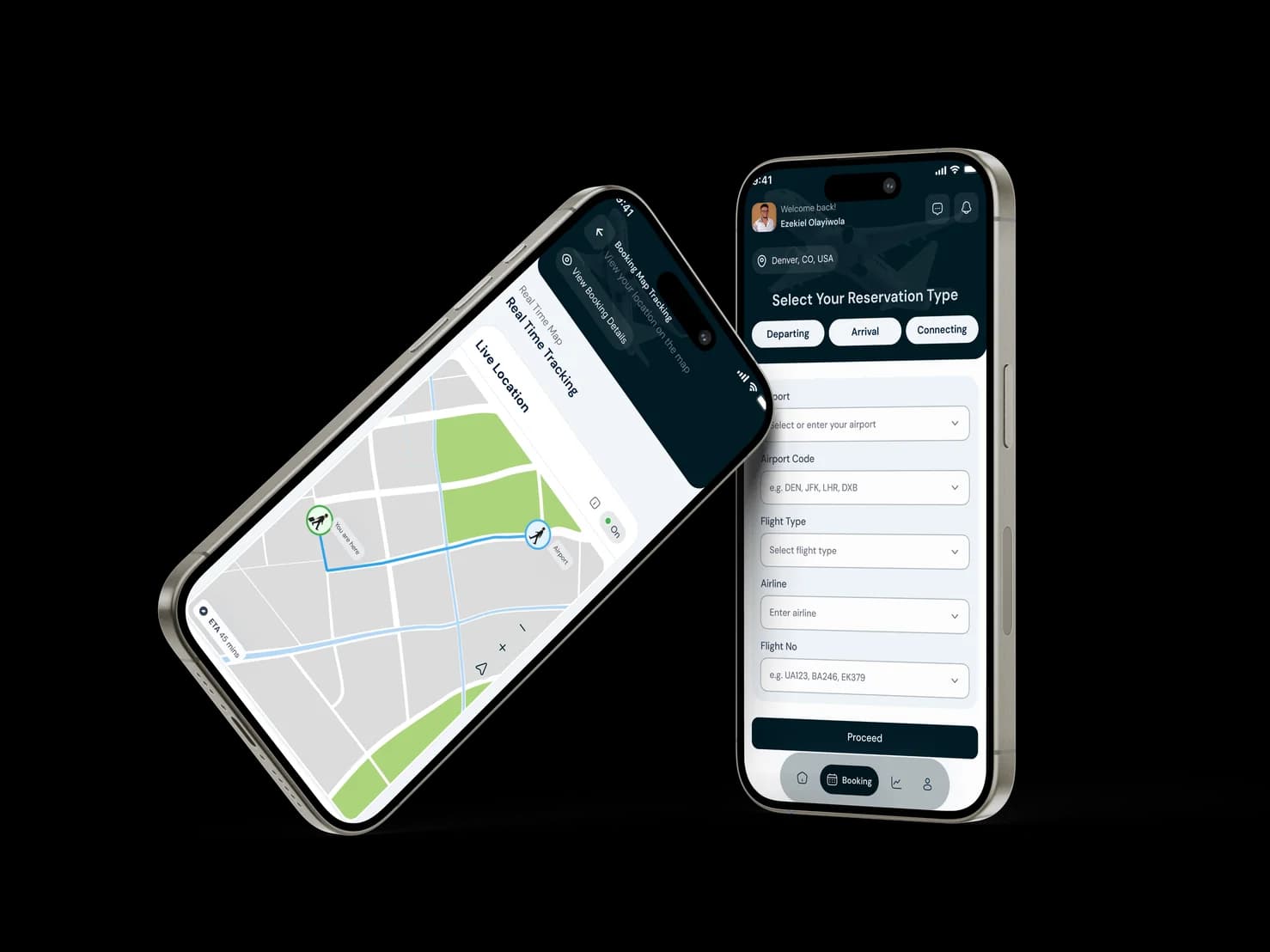
The Worldwide Greeter app showing live greeter tracking and a booking form
Get 10% off your first booking

Stay Updated with Travel Insights

Get exclusive travel tips, airport guides, and special offers delivered to your inbox. Join thousands of smart travelers who never miss a deal.

  • Exclusive travel deals
  • Airport insider tips
  • No spam, unsubscribe anytime
A globe traced with international flight paths
Worldwide Greeter

Contact

  • Toll: 800 705 5518
  • Assistance: 202 978 2003
  • info@worldwidegreeter.com
  • 7887 E Belleview Ave Suite 1100, Denver, CO 80111

Company

  • About Worldwide Greeter
  • Why Worldwide Greeter
  • Corporate Airport Concierge Solutions
  • Global Coverage
  • Get a Quote
  • Contact Us
  • Career

Discover Services

  • Arrival Assistance
  • Departure Assistance
  • Connection Assistance
  • Ground Transportation
  • Curbside Assistances
  • Luggage Assistances
  • Airports

Traveler

  • Private Travelers
  • Corporate & Executive Travelers
  • Groups & Multi-Traveler

Partner

  • TMCs & DMCs
  • Travel Agents
  • Hotels & Concierge
  • Airlines
  • Ground Transportation Partners

Resources

  • Booking Guide and How It Works
  • FAQs
  • Airport Assistance Explained
  • Blogs
  • Terms & Conditions
  • |Privacy Policy
  • |
  • |

© 2026 Worldwide Greeter. All Rights Reserved.

  • Home
  • Careers

Corporate account

14 questions

Getting started

  • Your account is activated by the Worldwide Greeter enterprise team. Once your contract is signed, you’ll receive a welcoming email with your account credentials, onboarding documentation, and a link to your Corporate Portal.

    From there, complete the onboarding checklist:

    1. 1.

      Complete your company profile and billing details

    2. 2.

      Add your departments and cost centres

    3. 3.

      Configure your approval rules

    4. 4.

      Add a payment method

    5. 5.

      Upload your traveler roster or add travelers individually

  • Access is role-based. You can assign the following roles to members of your team:

    • •

      Travel Manager — full access: book, approve, view billing, manage settings

    • •

      Finance Director — approve bookings, view and pay invoices, view reports

    • •

      Booker / Executive Assistant — create bookings on behalf of travelers, no billing access

    • •

      Traveler — read-only access to their own trips via the Traveler App, not the portal

    Invite users from Settings → Roles and permissions → Invite user.

  • Go to Travelers in the sidebar. You can add travelers three ways:

    1. 1.

      Individually — click Add traveler and fill in the profile form

    2. 2.

      Bulk upload — download the CSV template, fill in your roster, and upload. The system validates every row before importing.

    3. 3.

      Traveler groups — create named groups (e.g. Sales Team, Executive Leadership) so you can book and track multiple travelers together

    Each traveler profile stores passport details, VIP status, special requirements, and preferred package — these travel with every booking automatically.

Bookings

  • Every booking goes through your configured approval rules before a concierge is dispatched. Rules are fully configurable under Settings → Approval rules.

    Default rules include: bookings over a set amount require Finance Director approval, Diamond package bookings require CEO or CFO sign-off, and same-day bookings auto-approve for speed. You can customise every rule — threshold, approver, SLA, and auto-approve conditions.

    Approvers receive an email and in-portal notification instantly. They can approve or deny from the email itself — no need to log in.

  • Yes. From Bookings → Recurring, you can create a template for a booking that repeats on a defined schedule — for example, every Monday for a CEO’s weekly commute through LHR.

    Each occurrence generates a new booking that goes through your approval rules as normal. You’ll receive approval notifications before each occurrence. You can pause or cancel a recurring booking at any time.

  • Yes. When creating a new booking, select multiple travelers from your traveler directory or choose a pre-built group. The system creates linked bookings — each traveler gets their own concierge but they are tracked together as a group event.

    Group bookings over 5 passengers require Finance Director approval by default. You can adjust this threshold in your approval rules.

Billing

  • Corporate accounts are invoiced monthly. Invoices consolidate all services for the month, broken down by department and cost centre — so your finance team can reconcile against internal budgets without chasing individual receipts.

    Payment methods available: corporate credit card, bank transfer (ACH/BACS), or invoice billing on Net-30 terms. All are managed under Billing → Payment methods.

    Your negotiated corporate discount is applied automatically at checkout — you never need to enter a code.

  • Go to Billing in the sidebar. From here you can:

    • •

      Download individual invoice PDFs from the invoice list

    • •

      Export expense reports by department and cost centre as CSV

    • •

      View spend vs budget progress bars per department

    • •

      See a full audit trail with approval timestamps per charge

  • When your spend reaches 80% of your monthly budget, your travel manager receives an automatic alert by email and in-portal notification. If the budget is exceeded, a red overrun indicator appears on the dashboard and the billing page.

    Going over budget does not block bookings — it simply flags the overrun so your finance team can review. You can raise your budget limit by contacting your account manager.

Live operations

  • Yes — the Live Ops module in your portal shows every active company service in real time. For each traveler you can see: current service status, concierge name and GPS position, flight status including delays, gate and terminal, and a countdown to arrival.

    Status updates every 5 seconds via live connection. You receive automatic push notifications and emails on key events: concierge assigned, en route, on site, service complete, and flight delays.

  • Worldwide Greeter monitors all booked flights in real time. The moment a delay is detected, the system automatically adjusts the concierge’s schedule and notifies them directly. Your travel manager and the traveler both receive an alert with the new ETA.

    The concierge moves to standby mode and their arrival at the gate is timed to the updated landing time — your traveler is never left waiting because of a flight change.

Support

  • Support SLAs depend on your service tier:

    • •

      Diamond — 1 hour response, 24/7 VIP support line

    • •

      Platinum — 2 hour response, 24/7 support

    • •

      Gold — 4 hour response, business hours priority

    • •

      Silver — best effort, business hours

    Your dedicated account manager is also reachable directly for any account-level issue outside normal ticketing.

  • Go to Support in the sidebar. From there you can open a new ticket with a subject, category, related booking ID, description, and file attachments. Tickets are tracked with priority levels — Urgent, High, Medium, Low — and you can see the full conversation thread and resolution status in the portal.

    For emergencies during an active service, use the 24/7 emergency phone line shown on your Support page.

  • Yes — your account manager can arrange a live walkthrough of the Corporate Portal for your travel management and finance teams. We also provide recorded demo videos, onboarding documentation, and in-portal guided setup for new accounts.

    Contact your account manager directly or email corporate@worldwidegreeter.com to schedule.

Traveler account

14 questions

Getting started

  • Your company’s travel team books your airport services on your behalf. Once a booking is confirmed and assigned to you, you’ll receive a notification and can view all your trips in the Worldwide Greeter Traveler App (available on iOS and Android) or at the traveler web portal.

    Sign in with your corporate email address. If you have not received your login details, contact your company travel manager.

  • The Traveler App is a read-only experience — your services are always booked and managed by your company travel team. You cannot create, modify, or cancel bookings from the app.

    If you need a service that has not been arranged, contact your travel manager who can raise a booking through the Corporate Portal.

    If you are an individual (non-corporate) client, you can book directly through the Worldwide Greeter Client App or website.

  • The Traveler App shows you everything relevant to your journey:

    • •

      Active trip with live concierge location and ETA

    • •

      Upcoming and past trip history

    • •

      Bookings pending approval from your travel team

    • •

      Real-time flight status including delays

    • •

      Meeting point details and name board instructions

    • •

      Direct messaging with your assigned concierge

    • •

      Full activity log for each service

At the airport

  • Once your flight lands and your concierge has arrived at the meeting point, you’ll receive a push notification: “Mohammed has arrived at Gate C12 and is waiting for you.”

    Your concierge will be holding a board (Name Signage) with your name near the location specified in your booking (e.g. Arrivals exit, Belt 3). You can see their exact location on the live map in your app and they can see yours — the map guides you to each other.

    Once you spot them, tap I can see my concierge in the app — this confirms the connection and starts the escort phase.

  • The live map activates in two phases:

    • •

      En Route — you can see your concierge moving toward the airport on the map. Your location is not yet shown.

    • •

      On Site — once your concierge has arrived and validated their location at the airport, the map shows both of you. Your concierge sees you moving toward them; you see them stationary at the meeting point.

    The map updates every 5 seconds. Once you are together, the map switches to escort mode and guides you both to your drop-off point.

  • Nothing you need to do. The system monitors your flight automatically. The moment a delay is detected, your concierge is notified and their schedule is adjusted to match your new arrival time.

    You will receive a push notification with the updated ETA. Your concierge moves to standby and will arrive at the gate timed to your actual landing — not the original schedule.

Communication

  • Once a concierge is assigned to your booking, a Message and Call button appear on your Active Trip screen and on the Messages tab.

    Messages are delivered in real time. Your concierge can respond directly from their Concierge App. Past conversations are saved per booking — you can read them anytime from your trip history.

    Calls connect you directly to your concierge’s mobile. If they are unavailable, you can also reach the 24/7 Worldwide Greeter operations line through your Support page.

  • Yes — every conversation is stored against its booking and is permanently accessible in your Messages tab and trip history. You can read the full thread but cannot send new messages once the service is marked complete.

After your trip

  • Immediately after your service is marked complete, a rating prompt appears on your screen. You can give a star rating (1–5) and optional written feedback.

    Your feedback is shared with the Worldwide Greeter operations team and contributes to your concierge’s performance score. You can also rate from your past trips list — tap the trip, then Rate this service.

  • Go to My Trips → Past in the app. Each completed trip shows: route, date, package, concierge name and rating, service duration, and a full activity log. You can also view the full message thread from each past service.

Account

  • For Corporate Traveler - Your profile is managed by your company travel team. Details like your name, email, phone, and passport are set in the Corporate Portal by your travel manager — you cannot edit them directly in the app.

    If your details need updating (e.g. new passport number), contact your travel manager and ask them to update your traveler profile in the portal.

    For Private Traveler - You can conveniently manage your profile through our mobile or web application. Navigate to Profile → Edit Profile to update your account settings.

    You can update your notification preferences and language settings directly from the app under Profile → Notification preferences.

  • You receive push notifications and emails for the following events:

    • •

      Booking confirmed by your travel team

    • •

      Concierge assigned to your trip

    • •

      Concierge en route to the airport

    • •

      Concierge arrived at the meeting point

    • •

      Flight delay detected

    • •

      Service completed

    • •

      New message from your concierge

    You can turn each notification type on or off from Profile → Notification preferences.

  • Special requirements are stored on your traveler profile by your company travel manager. They are automatically included in every booking made for you — your concierge is briefed before arriving.

    Requirements that can be stored include: wheelchair or mobility assistance, dietary needs, preferred language, unaccompanied minor support, medical assistance, and any other access or comfort needs.

  • If you are a corporate traveler, first check that you are using your corporate email address as your username. If you have forgotten your password, use Forgot password on the login screen — a reset link will be sent to your email.

    If you still cannot access your account, contact your company travel manager who can check your account status in the portal, or reach Worldwide Greeter support at corporate@worldwidegreeter.com.

Concierge account

14 questions

Getting started

  • Concierge accounts are created by your regional operations manager. Once activated, you’ll receive a welcome email with your login details and a link to download the Concierge App.

    Complete your profile — including your airport specialities, languages spoken, and availability. Once verified, you will start appearing in the assignment pool for your airport.

  • Your eligibility is configured by your operations manager based on your onboarding, training, and airport accreditation. You can view your assigned airports under Profile → My airports in the Concierge App.

    If you want to add a new airport to your profile, contact your regional manager who can update your accreditation after the relevant airport orientation.

Jobs

  • Jobs are assigned by the Worldwide Greeter dispatch team based on: your airport, your current availability, proximity to the terminal, active job count, language match, and service speciality.

    You receive a push notification the moment a job is assigned. You have a short window to accept before the system auto-accepts or reassigns. Once accepted, the full job detail is visible in your app.

  • Every job follows this status sequence — you advance it manually in the app:

    1. 1.

      Accept — acknowledge the assignment and review job details

    2. 2.

      En Route — tap when you begin travelling to the airport. GPS tracking starts automatically.

    3. 3.

      On Site — tap when you arrive. The system validates your location via geofence. You must be within the airport perimeter.

    4. 4.

      With Client — activated by the traveler tapping “I can see my concierge.” You escort them to their destination.

    5. 5.

      Complete — take a proof-of-service photo, add any notes, then submit. Earnings update immediately.

  • The system monitors flights automatically. You will receive a push notification with the updated ETA and your schedule will be adjusted. You move to standby mode — remain at or near the airport and time your arrival at the gate to the new landing time.

    If the delay is significant, dispatch may contact you with updated instructions. Use the chat in the job detail to communicate with the client if needed.

  • First, check the live map in the job detail — you can see the traveler’s live location and they can see yours. Use the Message and Call buttons to reach them directly.

    If you have been waiting beyond your SLA threshold, an automatic alert goes to dispatch. Dispatch will attempt to contact the traveler and may update your instructions. Never leave the meeting point without informing dispatch first.

  • During an active job, tap the Incident button in the job detail. Describe what happened, add photos if relevant, and submit. The incident is logged against the booking and routed to your operations manager.

    At job completion, you are also prompted with an optional incident report toggle — use this if something happened that should be on record even if it did not affect the service outcome.

  • Add-ons are shown in the job detail before you accept. Common add-ons include:

    • •

      Wheelchair or mobility assistance

    • •

      Fast track and priority queue management

    • •

      Porter and baggage handling

    • •

      Language interpretation

    • •

      Airport lounge escort

    • •

      Name board holding at arrival exit

    • •

      Unaccompanied minor escort

    • •

      VIP security escort (requires additional clearance)

    Each add-on is briefed in the job detail. If you are not qualified or equipped for a specific add-on, flag this to dispatch before accepting.

Earnings

  • Your earnings are calculated per completed job based on: base service rate for the package tier, add-on service fees, and any applicable peak hour or complexity bonuses. Earnings update in real time on your Earnings screen the moment a job is marked complete.

    Payment is processed on your agreed cycle (weekly or monthly) by your regional operations manager. Your Earnings screen shows a downloadable PDF report for any period.

  • Your aggregate star rating is calculated from traveler ratings submitted after each completed service (1–5 stars). Rating factors include: punctuality at the meeting point, professionalism, communication, and overall service quality.

    Your rating is visible to dispatch when assigning jobs — higher-rated concierges receive priority assignment for VIP and Diamond-tier bookings. Ratings below 4.0 may trigger a performance review from your operations manager.

  • If a booking is cancelled before you tap En Route, you receive a notification and the job is removed from your list — no earnings for that job.

    If a booking is cancelled after you have tapped En Route or On Site, a cancellation fee policy applies based on how far into the service you were. Your operations manager can confirm the exact policy for your region.

App

  • GPS tracking requires Location permissions to be set to “Always allow” in your phone settings. If tracking stops, the traveler’s app will show your last known position.

    Dispatch is automatically alerted if your GPS signal drops during an active service. Reconnect to GPS as soon as possible — if the issue persists, contact dispatch directly so they can manually update your status and reassure the traveler.

  • Your account can be logged in on one device at a time. Logging in on a new device will sign you out of the previous one. For security, log out from your profile when you finish a shift.

  • For any issue during an active job, contact your dispatch team directly through the Dispatch Contact button in the app. They have real-time visibility of your job and can assist immediately.

    For account issues (login, profile, payment), contact your regional operations manager or email concierge@worldwidegreeter.com.